
Changing The Linux Console Login Timeout
You have a Virtual Private Server (VPS) running on some cloud service. Doesn’t matter the provider. You can’t physically sit down at the system. You don’t have physical access. No worries. You have SSH, and if all else fails the cloud provider provides a virtual console session running in your web browser right? So what’s the problem?
The “problem” comes down to a matter of password complexity and typing speed.
You see, while cloud providers typically provide a virtual console for “local” access to log in to a VPS if required, not all virtual consoles have the same features. One common feature that’s usually missing? The ability to paste into the virtual console window.
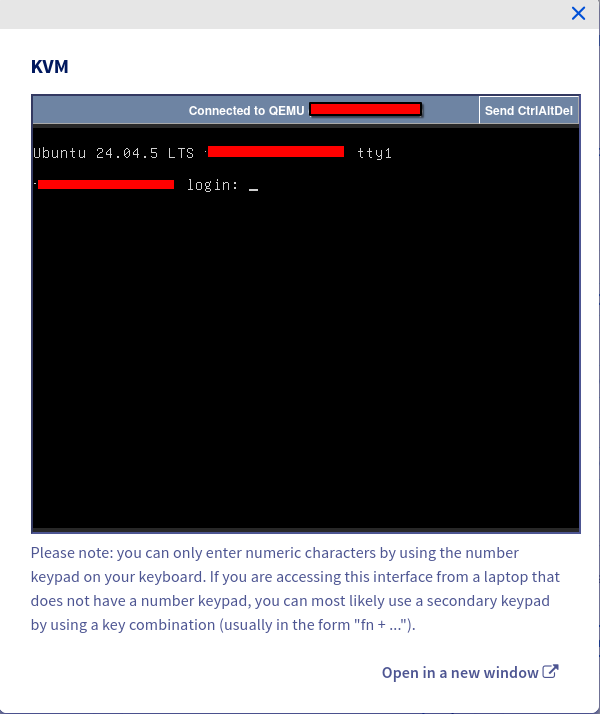
Now if you’re like me your passwords are long complex strings that are stored in your password manager, so you don’t really have a need to type them in.
Until one day for whatever reason you can’t connect to your VPS through SSH. It could be a local networking issue. It could be the SSH service. For our purposes right now it really doesn’t matter why you can’t remotely log in, the point is you can’t so you need to login through the virtual console window to see what’s going on.
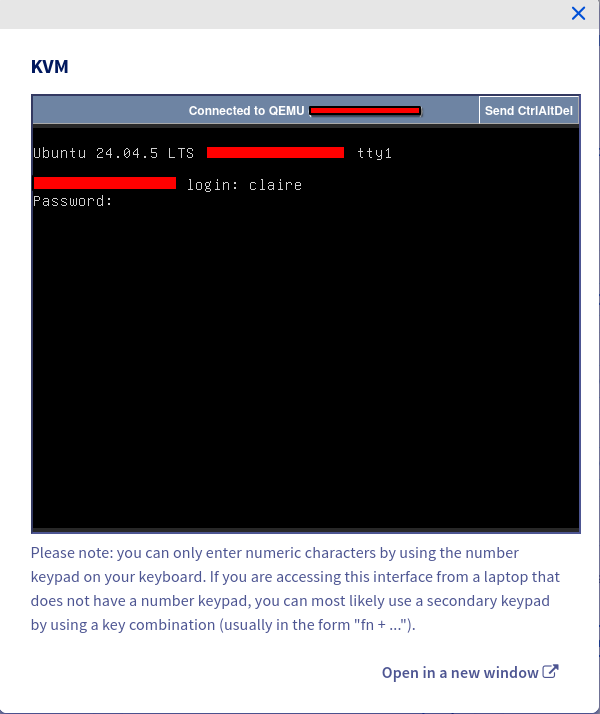
So you bring up the entry in your password manager and try to copy and paste, but quickly realise that “paste” doesn’t work in the virtual console window. You reveal the password and sigh. This is going to be painful to enter, but you gotta do what you gotta do.
You’re a quarter of the way through this 64 character password. I mean, of course you’re slow and hunt and pecking the keys. There’s numbers and symbols. Is that a lowercase “rn” or a lowercase “m”?
You look up at the screen and part of your password is visible on screen in the username prompt.
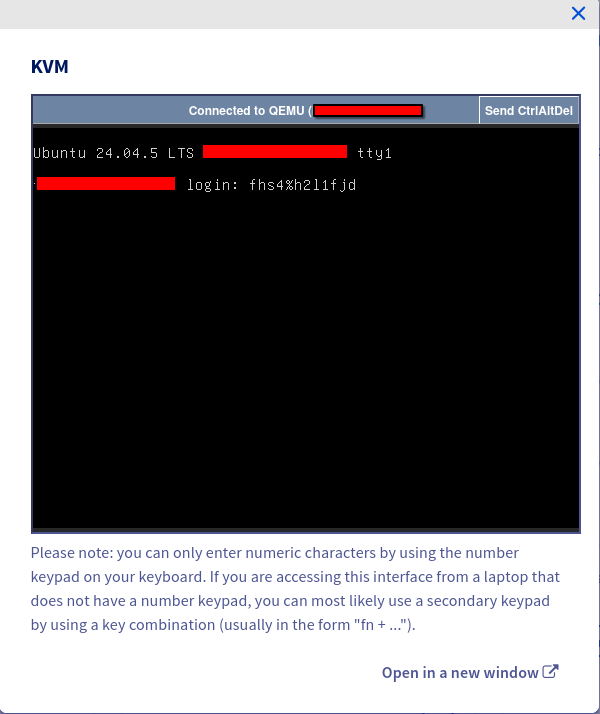
What the hell??
By default, on Ubuntu Server at least but it’s likely the same for other Debian derivatives/linux OS’s, the default login timeout for the “tty1 console” is 60 seconds. And that’s not 60 seconds since the last key press. Oh no. That’s 60 seconds since the username was entered.
So once you enter the username and press enter, you have 60 seconds to enter your password. Your long. 64 character. All the uppercase, lowercase, symbols, and digits you let the password manager generate for good password hygiene. Password.
Good luck.
If you’re reading this because you’re currently in this situation and can’t type fast enough to finish logging in before it resets the login screen on you…
I’m sorry.
I can’t help you. You can’t bypass or increase this timeout while you’re trying to login. That would of course kinda defeat the purpose of having a security timeout to begin with.
But. If you’re reading this because you didn’t know this could be a problem, or because you’ve been burned by this in the past or maybe were able to eventually increase your typing speed to get that password in with 1 second remaining on the proverbial Hollywood movie countdown timer, you can at least make a change to prevent this is in the future.
This setting is controlled by the “LOGIN_TIMEOUT” setting in the file “/etc/login.defs”
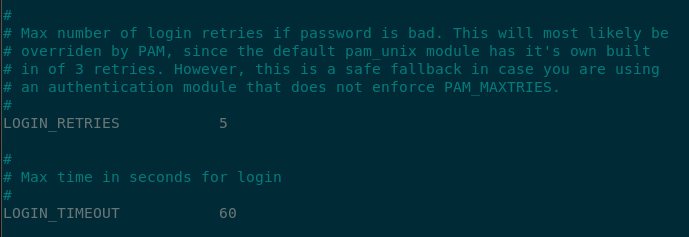
So what you want to do is increase that timeout to give yourself time to get that long password entered. This is a protected system file so you’re going to need to elevate your permissions with the “sudo” command in order to be able to edit the file.
WARNING!!!
Changes to the login.defs file are processed immediately. Be very careful of the changes you make in this file as changing a setting incorrectly can lock you out of your system and make it very difficult to get back in.
-
Go ahead and open the file in nano or other text editor of your choice
ubuntu24.04:~# sudo nano /etc/login.defs -
Find the “LOGIN_TIMEOUT” setting and change the default value from “60” [seconds] to whatever number of seconds you feel comfortable using to give yourself enough time to enter your password. I’ve found increasing to “180” [seconds] (3 minutes) has been plenty of time for me to enter my passwords whenever I find myself in this predicament.
Obviously don’t increase the timeout to too large a value as that would again defeat the purpose of this security setting. But a few minutes should be plenty for both your sanity and maintining secure local access.
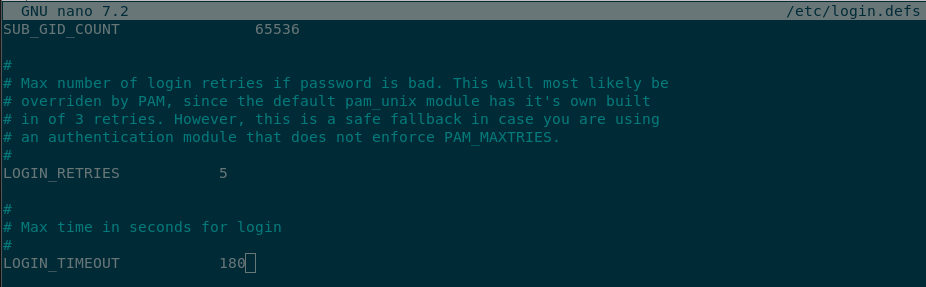
-
Save the file and you’re done. No need to restart any services or reboot the system for the change to take effect.
I firmly believe that if you are running a linux server on a cloud provider or anywhere else where you don’t/won’t have physical access to it, this is one of the most important “default” settings you should change when you first spin up your system.
Otherwise, you can find yourself annoyed at best. Or locked out of your system at worst.
If you have any questions/comments please leave them below.
Thanks so much for reading ^‿^
Claire
If this tutorial helped you out please consider buying me a pizza slice!