
Updating {Very} Outdated Proxmox Installs
To get a quick idea of what you’re in for, we’re going from Proxmox version 7 on Debian 11, to Proxmox version 8 on Debian 12, to Proxmox version 9 on Debian 13.
This is an advanced tutorial.
It is expected that you already have quite a bit of experience with Linux, the command line, scripting, etc.
Table of Contents
Sometimes life gets away from you and, well, you don’t perform the maintenance on your homelab that you really should have.
It’s been an… interesting few years and I had a couple of Proxmox nodes that were a tiny bit, um… outdated.
How outdated?
Well the current version of Proxmox as I write this is version 9.2.21 which is built on Debian 13. The node that desperately needed some attention and loving care was still on verison 7.2-11, which itself was buiilt on Debian 11. From 2022. So… it’s been a bit.
But hey, that means I get to make this tutorial on updating very old Proxmox installs to the latest version so here we are : )
Before We Begin
Now just a few things before we get into this.
- This is a standalone install of Proxmox. It’s not part of a cluster and it’s not using CEPH.
- There are lots of different ways to configure and customise Proxmox, so your install can be very different from this one
- Shut down all VMs and Containers while you’re updating.
- Also if any of those VMs or Containers are configured to start automatically when Proxmox starts, disable them now. We’re going to be rebooting quite a few times before we’re finished and if you don’t disable your auto-start options you’re going to be spending a lot of time shutting down VMs and Containers again. Multiple times.
- This worked for me. It may not work for you. You’re welcome to try, but you can’t blame me if things don’t work after.
- Make sure you have backups of your data and/or backups of your VMs and Containers (virtual disks, config files, etc.) if you care about such things. My upgrades went smoothly without data loss. Your’s may not. That’s the risk we run when we neglect doing updates.
- Yes this post is long. But it’s not actually. There’s just a lot of screenshots and essentially we just keep repeating the same steps multiple times until we’re finished. No seriously, you could probably cut this whole thing by a third, but please read it all anyway. I write words to be read : )
WARNING
Because number 5 is so important, I’m going to say it again. In this fancy yellow-ish warning block.
Make sure you have backups of your data and/or backups of your VMs and Containers (virtual disks, config files, etc.) if you care about such things. My upgrades went smoothly without data loss. Your’s may not.
Let’s Go!
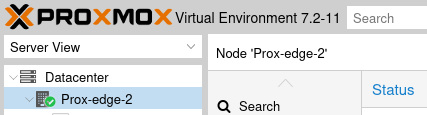
The web interface will tell us the Proxmox version is 7.2-11.
If we SSH into the system, from the command line we can get the version of Debian installed as well and it’s version 11.5.
root@Prox-edge-2:~# pveversion
root@Prox-edge-2:~# cat /etc/debian_version
root@Prox-edge-2:~# cat /etc/os-release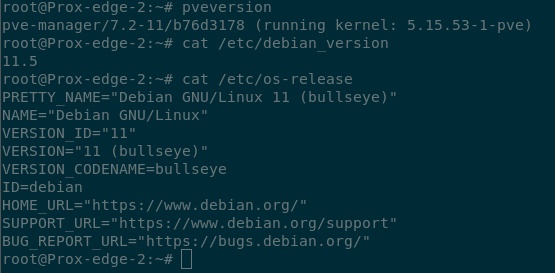
Updating Proxmox 7 and Debian 11 ‘Bullseye’
Before we can go upgrading Proxmox and Debian to the absolute latest, we’re going to need to install the latest updates that were available for Proxmox 7 and Debian 11 (‘Bullseye’) at the time. In the past. When they still received updates. That we didn’t install. It’s fine. No guilt here. Second best time to plant a tree and all that.
- Update the package lists
root@Prox-edge-2:~# apt update
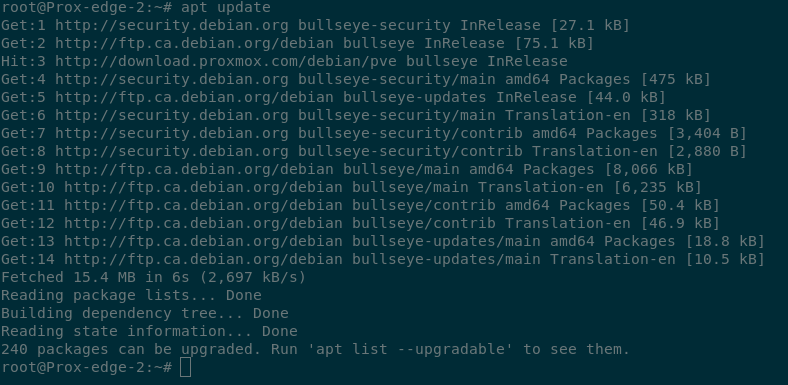
There are 240 packages that can be upgraded. Instead of running ‘apt list –upgradable’ to view them, we’re just going to go ahead and update them as that’s what we’re here for anyway.
- Upgrade the available packages
root@Prox-edge-2:~# apt upgrade
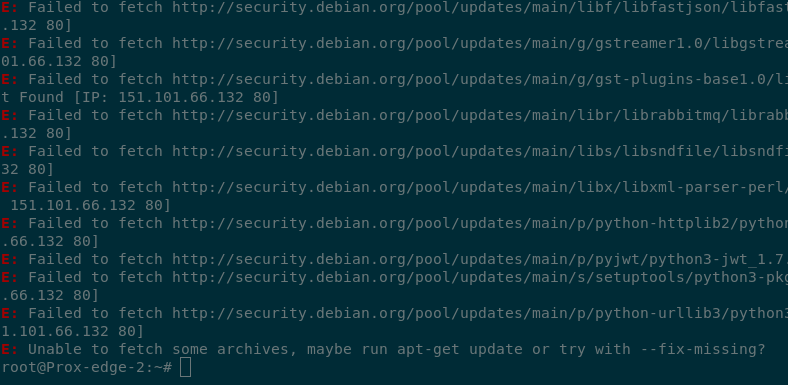
“Failed to fetch…”
What the hell? Apt isn’t able to download the updated packages from those URLs. You can get that error if it can’t communicate with the site because of a problem on your end, say DNS is not working or you have port 80 (HTTP) outbound blocked.
But I know my DNS is working and on this server currently I’m not doing an outbound HTTP block so what’s happening here?
We’ll since it’s been so long since I updated this system, Debian version 11, codenamed ‘Bookworm’, is no longer under support. It’s reached end of life so the URLs we have as the repository sources are no longer valid.
- Update repo Sources
root@Prox-edge-2:~# nano /etc/apt/sources.list
We’re going to change the repository URLs from the original values to the Debian archive links.
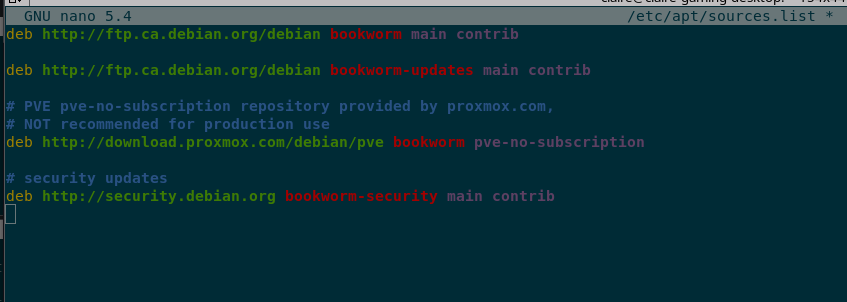
The easiest way to do that is to make a copy of each line and comment out (with a ‘#') the original line. The commented lines are not processed by apt so this essentially “disables” the repo followed by the ‘#’. That way we can easily restore the original settings later.
The biggest URL change is for the Debian security repo. That one changes from
http://security.debian.orgto
http://archive.debian.org/debian-security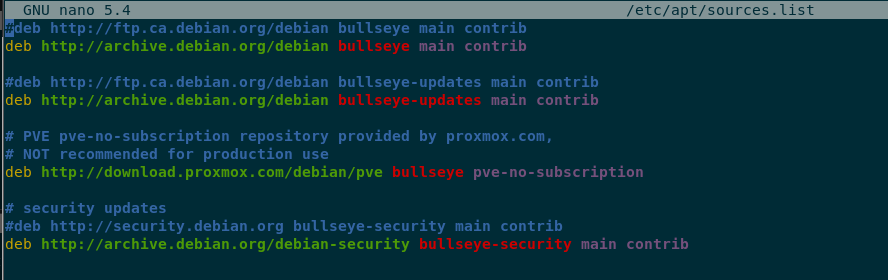
Now we can update our package lists again, which still shows 240 packages can be upgraded.
- Update the package lists
root@Prox-edge-2:~# apt update
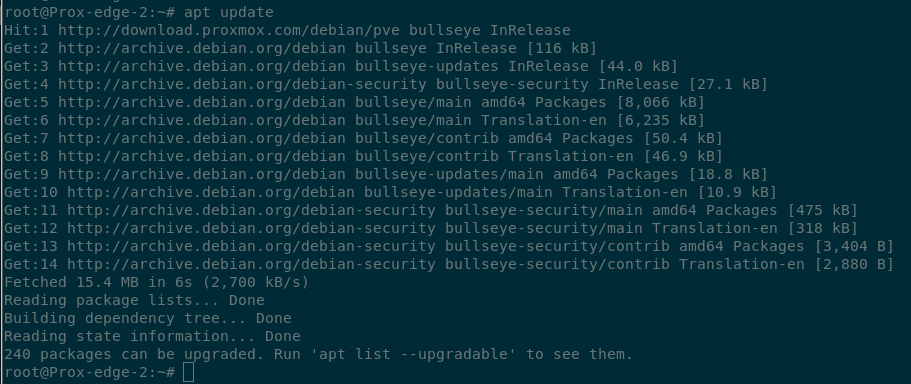
But this time when we run our upgrade the system is able to find the appropriate URLS to download and install the packages accordingly.
- Upgrade the available packages
root@Prox-edge-2:~# apt upgrade
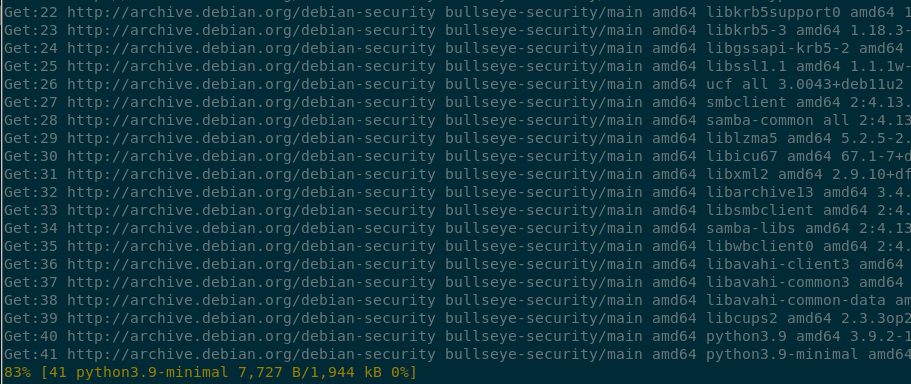
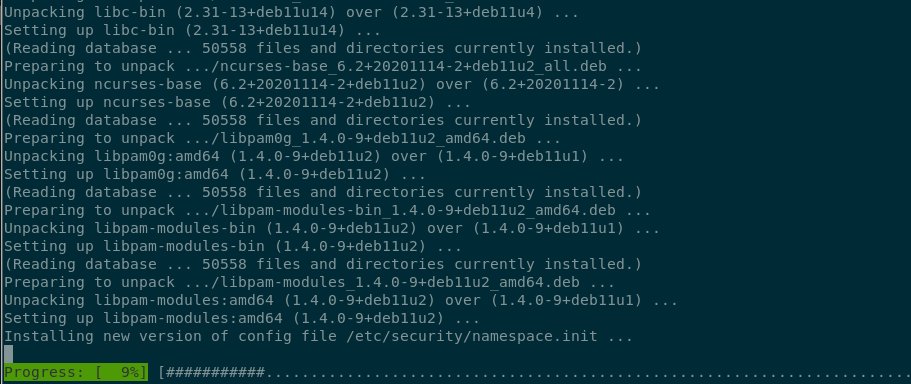
After the upgrades have finished reboot the system.
- Reboot the system
root@Prox-edge-2:~# reboot
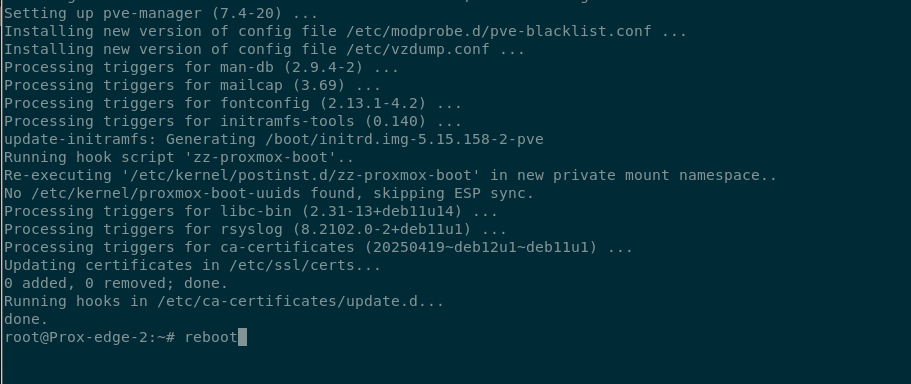
Success! Onwards Fellow Tech Adventurers!
Following the reboot we can refresh the package sources again and we see that there are two packages related specfically to Proxmox that were kept back.
- Refresh the package list
root@Prox-edge-2:~# apt update
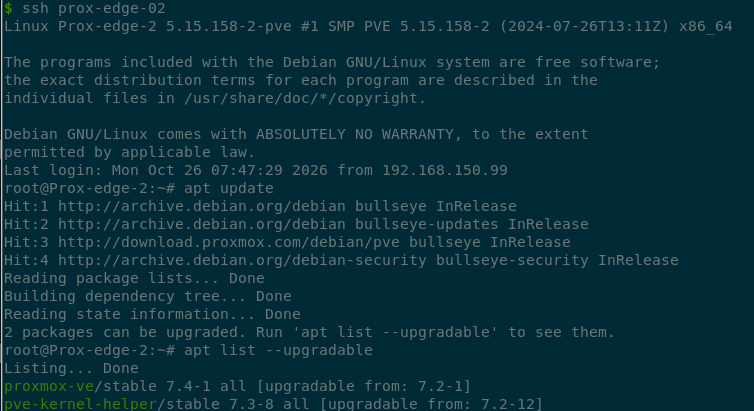
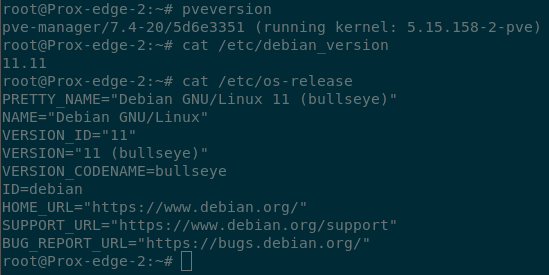
Checking the version in the Proxmox web interface and on the command line though we can see that Proxmox did update to the latest 7.4 release and Debian updated to the latest 11 point release.
- Check the reported versions
root@Prox-edge-2:~# pveversion
root@Prox-edge-2:~# cat /etc/debian_version
root@Prox-edge-2:~# cat /etc/os-release
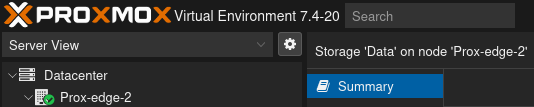
Anyway, let’s see about updating those Proxmox packages that were kept back
- Upgrade kept back packages
root@Prox-edge-2:~# apt update
root@Prox-edge-2:~# apt upgrade -y
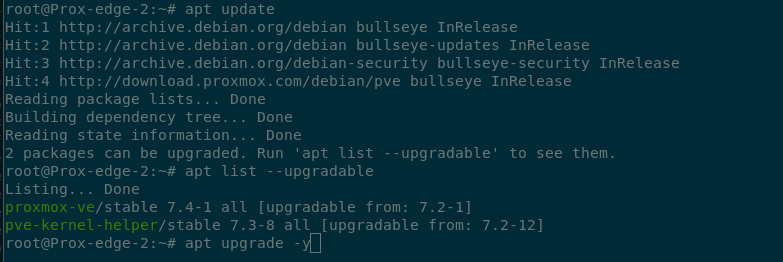
Apparently I forgot to grab a screenshot here, but essentially it said it was keeping the packages back and refused to upgrade them.
Helpful. I mean I get it, there are reasons for it. So it is helpful. But not what we want. So we’re going to force the upgrade of those packages.
- Force upgrade of kept back packages
root@Prox-edge-2:~# apt dist-update
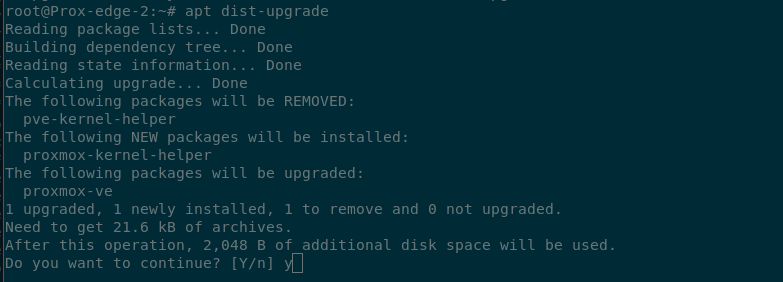
OK look I admit I’m falling down on the job here at taking screenshots. This was a success. It installed those packages. You’ll just have to trust me on that.
Are You Ready?
Let’s run the pve7to8 checker tool and see if it gives us any warnings or {hopefully not} failures.
- Run pve7to8 check script
root@Prox-edge-2:~# pve7to8 --full
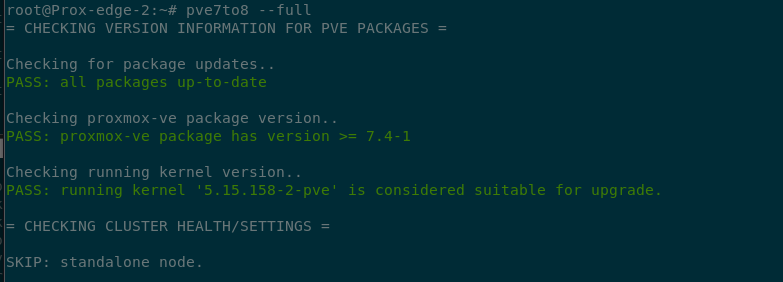
Looks like the pve7to8 readiness check produced one warning. And no failures! So that’s good! Got that going for us.
Now I get it, ugh a warning? Do I need to worry about it. Probably not. Things will probably update just fine. But then again they might not. That’s why warnings exist. It’s easier to just take care of the warnings as we go along.
This one is letting us know we don’t have the ‘grub-efi-amd64’ package installed.
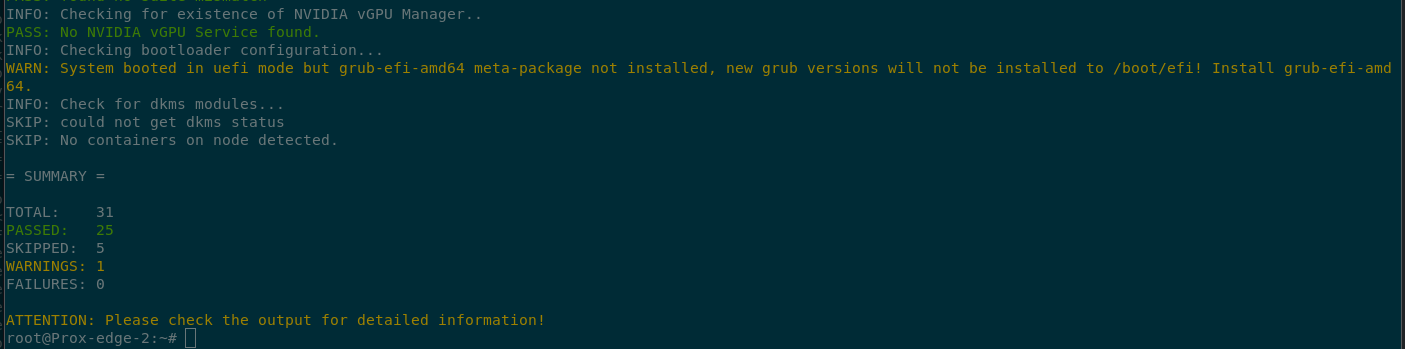
That’s easy enough to fix.
- Install ‘grub-efi-amd64’ package
root@Prox-edge-2:~# apt install grub-efi-amd64
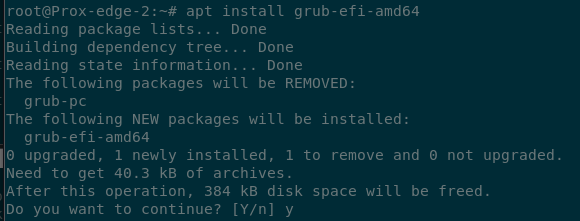
Once again I neglected to take a screenshot after the install. Which is funny because I was taking a lot of screenshots as you can tell so not sure why I kept missing some but anyway, trust me again, the package installed.
Actually you don’t have to trust me. Running the readiness check again and this time we passed with flying colours! No warnings. So there. Ha! I didn’t lie. The package was installed.
Side note: Why are the colours flying anyway? Where are they flying too? Do they charge for an extra bag?
- Run pve7to8 check script
root@Prox-edge-2:~# pve7to8 --full
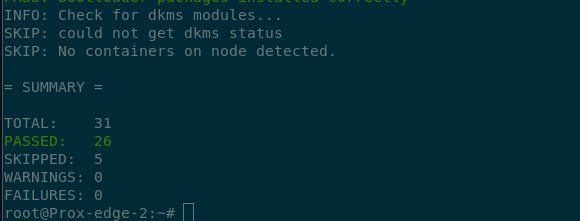
Anyway no warnings. Yay! Let’s get this system updated.
We have to update our package sources to the next Debian version 12, codenamed ‘Bookworm’.
We need to change the word “bullseye” in our /etc/apt/sources.list file to ‘bookworm’.
The easiest way to handle this is to use sed to do a search and replace and update the file.
- Hit that bullseye you bookworm
root@Prox-edge-2:~# sed -i 's/bullseye/bookworm/' /etc/apt/sources.list
Sed Explainer:
- -i = update the file.
    - Without the -i it will show you what it will change, which is handy. Definitely do
      that before making changes.
- 's/bullseye/bookworm/' = a search and replace syntax. 's/{SEARCH_WORD}/{REPLACE_WITH}'/
- /etc/apt/sources.list = The file we're reading and in this case writing back too
If we cat the file all the instances of ‘bullseye’ were replaced with ‘bookworm’
- Here kitty kitty
root@Prox-edge-2:~# cat /etc/apt/sources.list
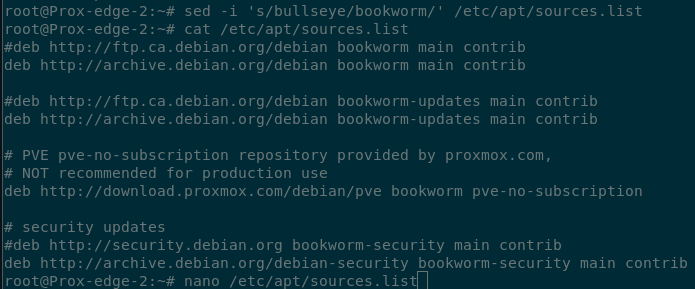
Debian 12 ‘bookworm’ is still under active support. So that means we need to change our repo URLs back to not use the archive URLs. Cause bookworm isn’t in the archives yet yeah?
Since we commented out the original lines when we made our initial changes, this makes it super easy to update the file again.
Open the file in a text editor (I like using nano).
- Update Repo URLs
root@Prox-edge-2:~# nano /etc/apt/sources.list
Delete the existing lines that have “archive.debian.org” in them, and delete the ‘#’ from the beginning of the other lines so that this
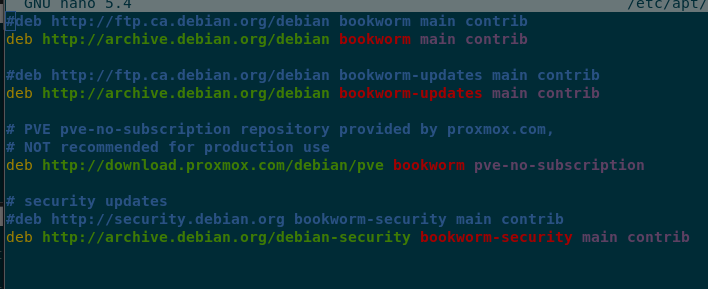
Looks like this.
(nano is controlling the colours displayed here in case you were wondering. Commented lines are all in blue. Once you uncomment a line well… the line starts being true to itself. Work those colours girl!)
The Main Event
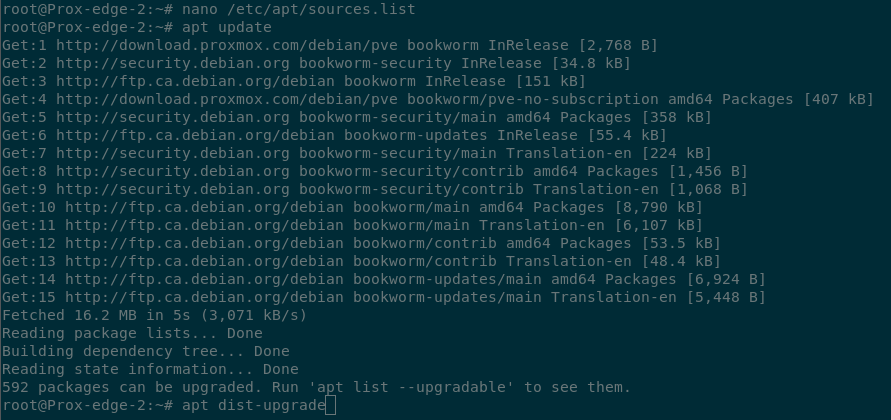
Now that we have the sources updated, if we refresh the list of avaialble packages again we now see there are 592 packages that can be upgraded.
- Update Repo URLs
root@Prox-edge-2:~# apt update
Just like before though if we tried the regular ‘apt upgrade’ method it wouldn’t work. We need to go with ‘apt dist-upgrade’ again to force* apt to upgrade the packages
- Upgrade packages with dist-upgrade
root@Prox-edge-2:~# apt dist-upgrade
* Little side note here before people on the internet tell me I’m wrong. Yes I know this isn’t technically a “force” option. A “force” option is “do the thing I told you to do anyway without complaining”. Like overwriting or deleting a file without letting me know how much it’s going to screw up my day. “dist-upgrade” isn’t a “do this anyway” option. It’s an entirely different function used to upgrade packages while also handling the new dependancies for those packages accordingly. But it’s easier to say “force” alright?
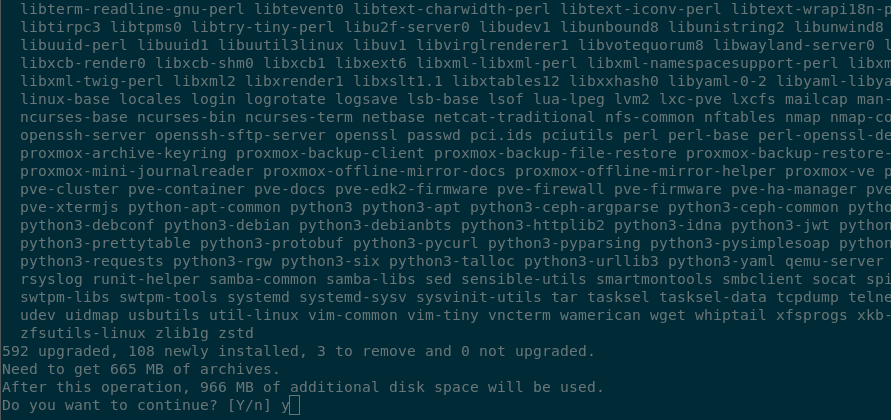
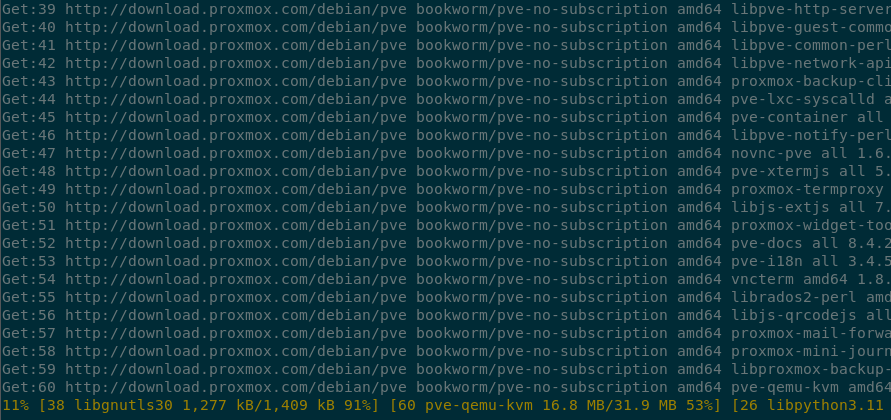
Once we’ve kicked off the dist-upgrade we’ve got some waiting to do. Now is a good time to go make a coffee or something. Maybe a sandwich. Actually a sandwich does sound pretty good right now. A tuna sandwich with some cherry tomatoes on the side. Maybe a bit of cheese. Couple of biscuits… Where was I?
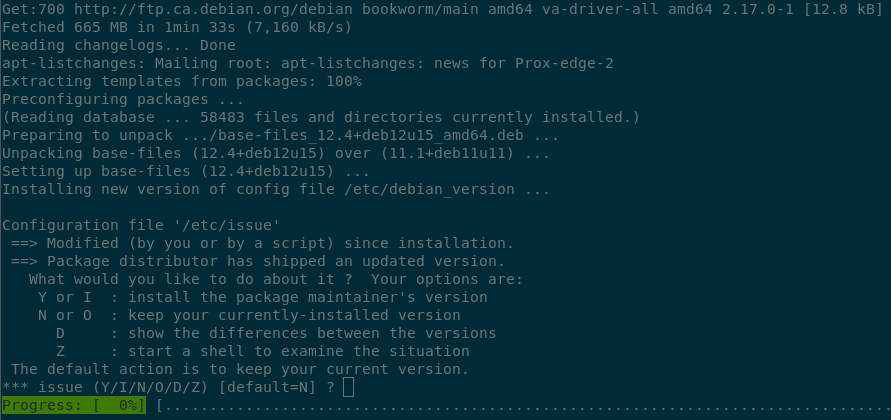
Oh right, we’re waiting for things to happen, but it’s not entirely a hands off process. Along the way we have some questions to answer about keeping some of our current config files or if we want it to automatically restart services during the upgrade.
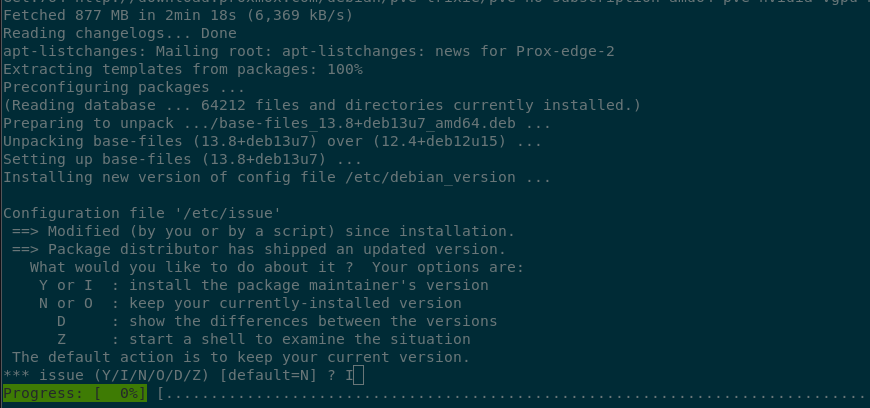
I can’t tell you what to choose for those questions, as they’re unique to your system and what you want to do. Some of the config files like the one below (/etc/issue) I told it to replace the file. Other I told it to keep. I said go ahead and restart services when it asked. You might not want that. Choose your own adventure.
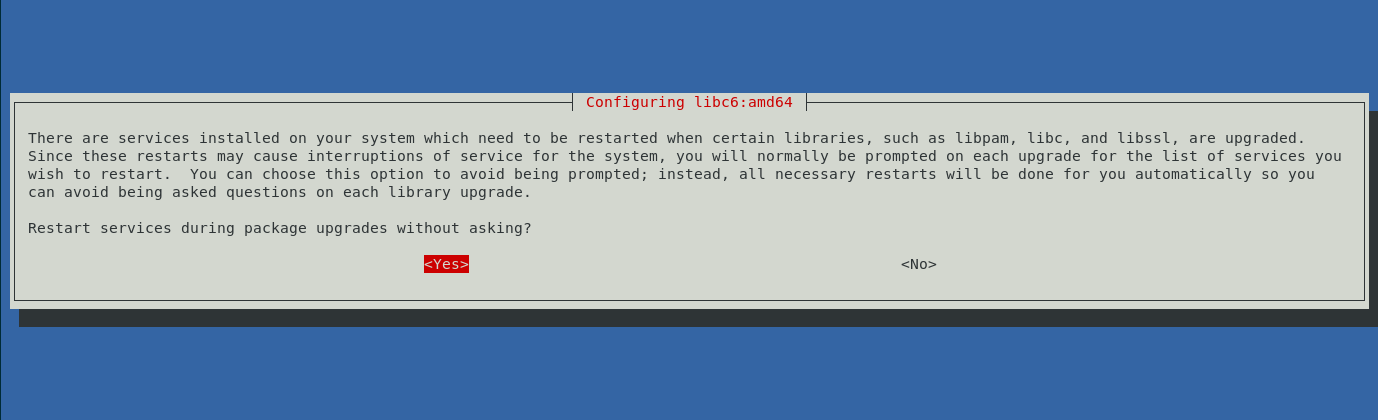
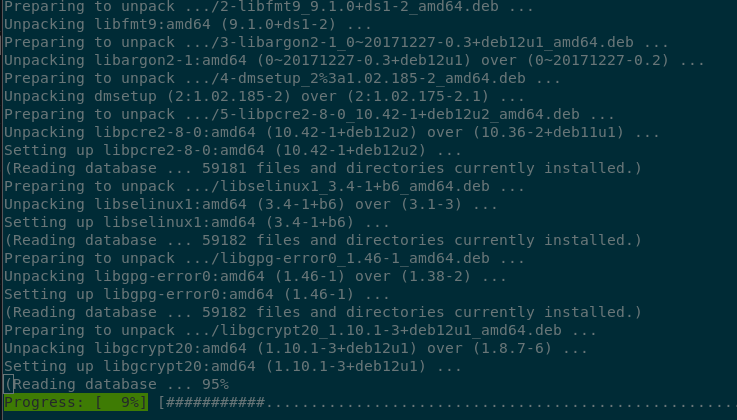
I missed some screenshots earlier showing that it had done a thing so I made sure to get a screenshot this time of it doing the main thing so… look… progress
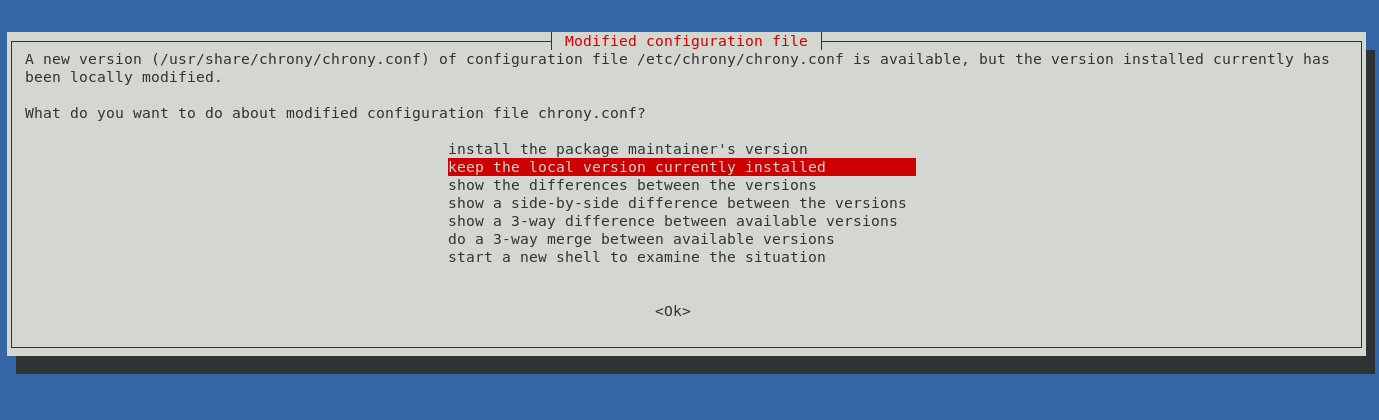
Another replace or keep question. I kept my version of this file (/usr/share/chrony/chrony.conf)
Hey things are finished!
But actually read the text on the screen. There’s something else to do here in regards to the bootloader. This is related to the ‘grub-efi-amd64’ package we installed earlier. What it’s asking us to do looks a little scary, but you can copy* the text in the terminal that it wants you to perform and then paste it into the terminal to perform it, so it’s pretty easy.
* Copy the text from your terminal, not from this page. It’s likely going to be the same, but on the offchance it isn’t, you want to issue the command your system is telling you to issue, not what I’m showing you my system did.
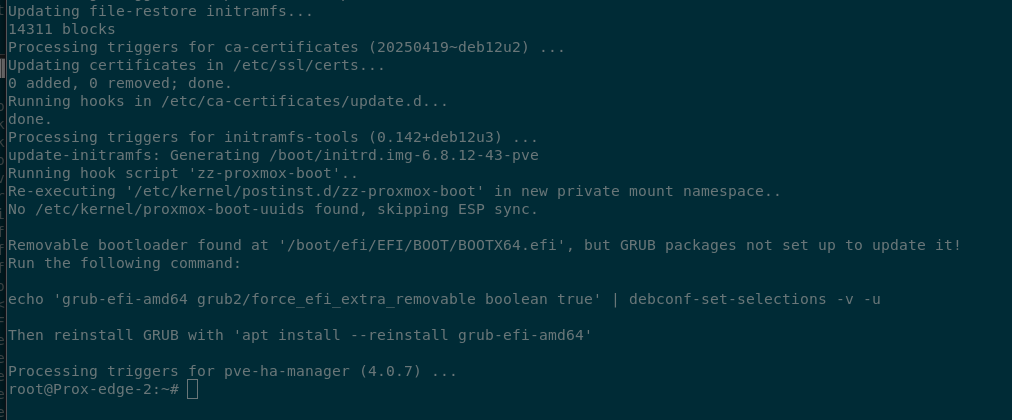
It’s a two step process.
-
Allow GRUB packages to update grub-efi bootloader
root@Prox-edge-2:~# echo 'grub-efi-amd64 grub2/force_efi_extra_removable boolean true' | debconf-set-selections -v -u -
Reinstall grub-efi-amd64
root@Prox-edge-2:~# apt install --reinstall grub-efi-amd64
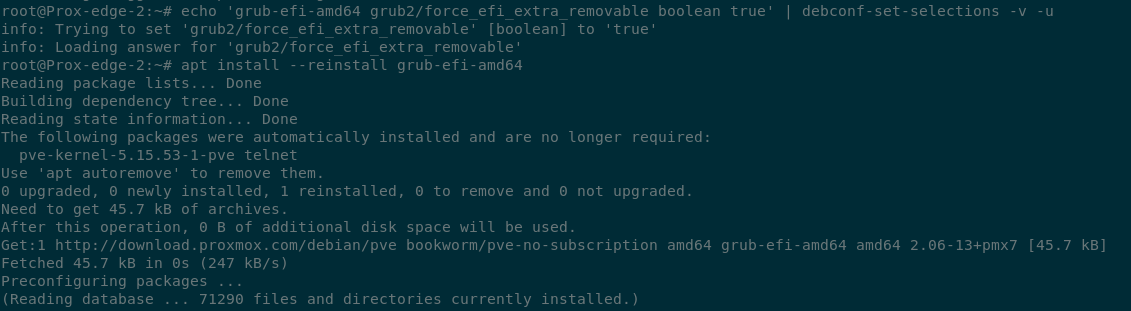
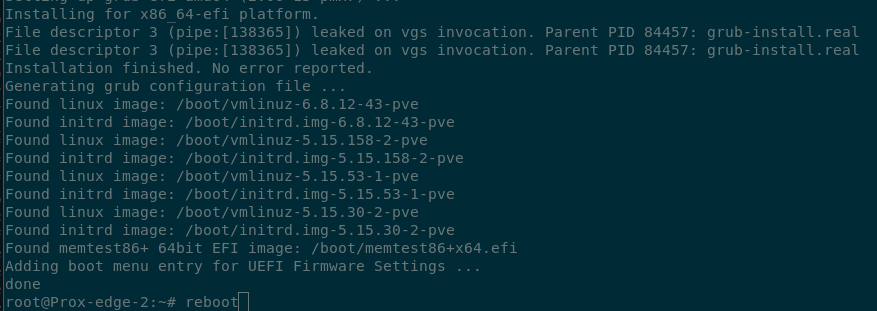
After that’s done, we’re doing another reboot.
- Reboot
root@Prox-edge-2:~# reboot
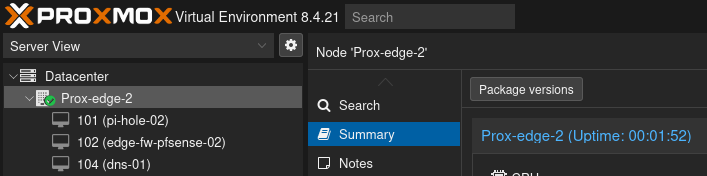
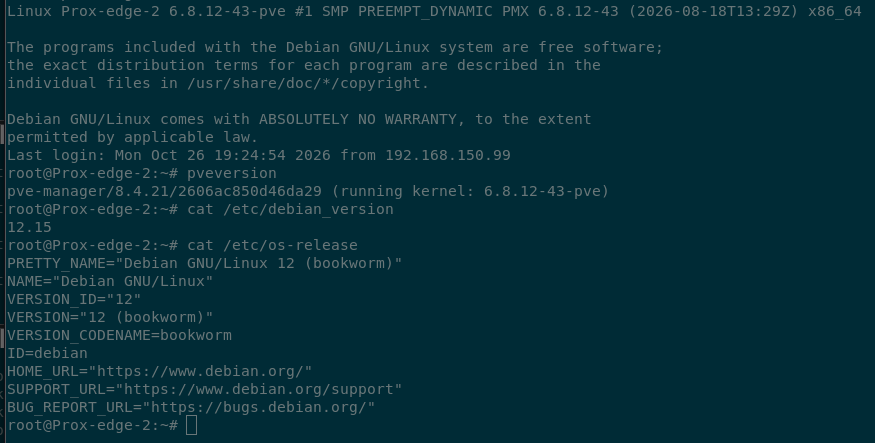
Oooo Proxmox version 8.4.21! That’s exciting.
The terminal reports the same and also tells us we’re running Debian 12.15.
- Show Proxmox and Debian Version Info
root@Prox-edge-2:~# pveversion
root@Prox-edge-2:~# cat /etc/debian_version
root@Prox-edge-2:~# cat /etc/os-release
Chills. We got there. We survived.
Proxmox is updated and Debian is updated and the system didn’t burst into flames or explode.
Now do it all again
What?
You heard me. We put off maintenance on this for a really long time.
Now it’s time to go to Proxmox version 9 and Debian 13!
Side note here. If you’re feeling inclined you can start up some/all of your VMs or Containers here and make sure they work before moving ahead. I… didn’t. I just carried on. If you do start your VMs or Containers though make sure you shut them down again before continuing with the upgrade.
There shouldn’t be any updates available because the previous dist-upgrade pulled down the latest packages, but just to be sure refresh those package sources again.
- Check for updates
root@Prox-edge-2:~# apt update
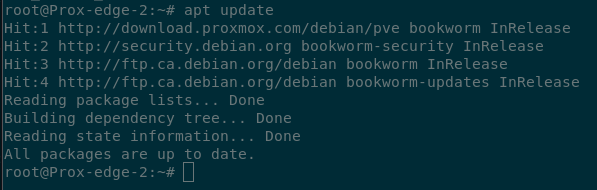
Alright no updates, let’s run the pve8to9 readiness check
- Readiness check
root@Prox-edge-2:~# pve8to9 --full
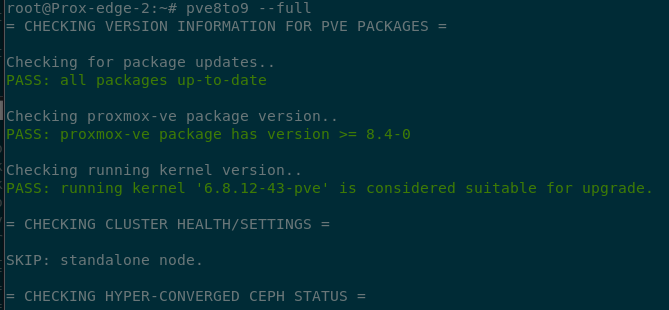
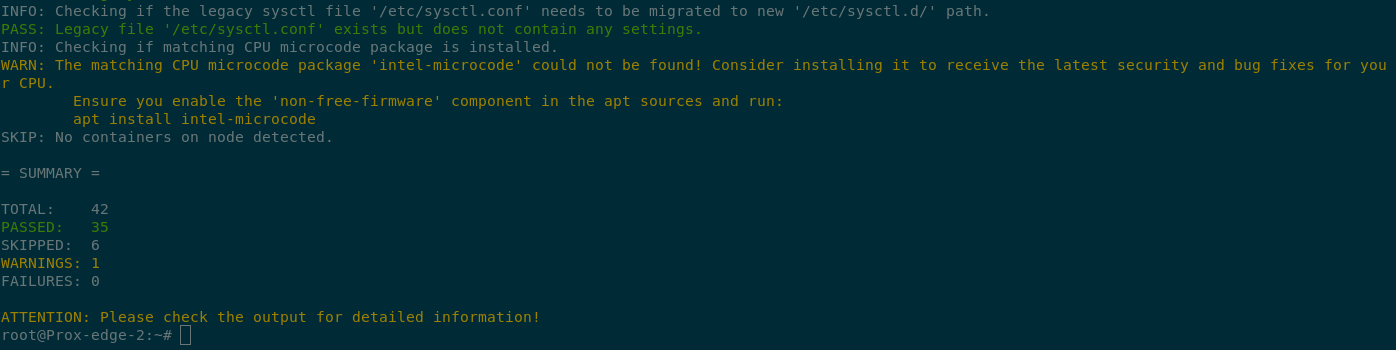
One warning again. It would prefer if we installed the ‘intel-microcode’ package to receive updates for the CPU. Fine. Let’s install that.
- Install intel-microcode
root@Prox-edge-2:~# apt install intel-microcode
Oh. It error’d out. Can’t find the package?? What the hell but you told me you wanted me to install it! What kind of useless piece of.. oh, “ensure you enable the ‘non-free-firmware’ component in the apt sources”. Right.
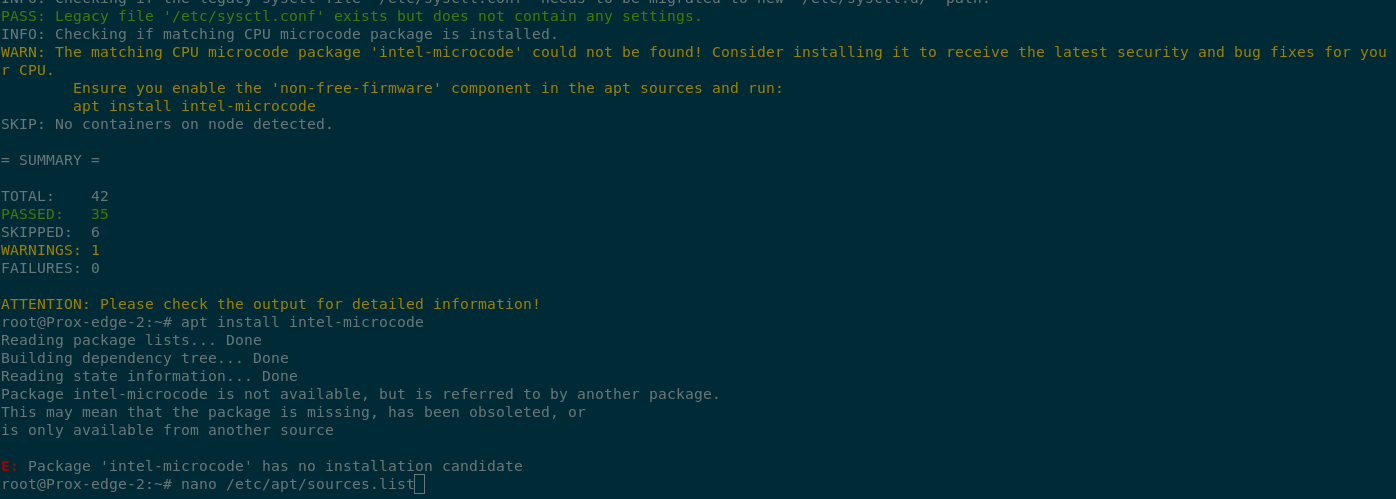
Open up that sources file again and we’ll enable some additional options.
- Update /etc/apt/sources.list
root@Prox-edge-2:~# nano /etc/apt/sources.list
After each of the “*debian.org” lines, we’re going to add ‘non-free’ and ‘non-free-firmware’ to the end of the lines.
Technically we only need to include the ‘non-free-firmware’ option here, but since I was adding options I decided to also put in ‘non-free’. You do you.
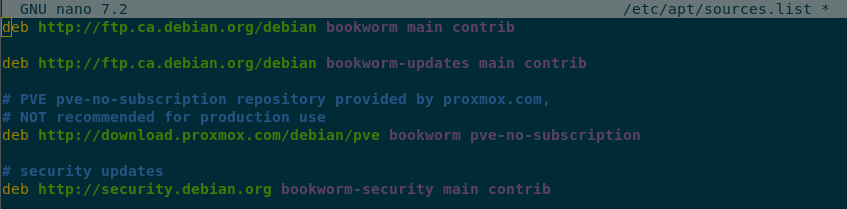
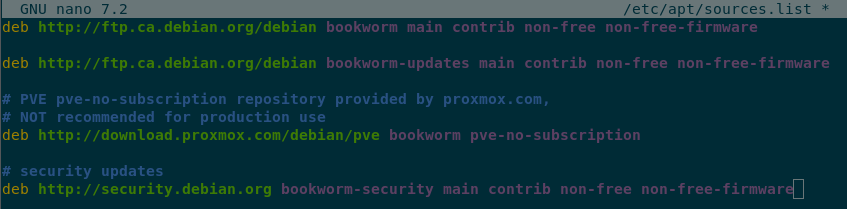
Once we save that file, we’ll update our sources again.
- Update sources
root@Prox-edge-2:~# apt update
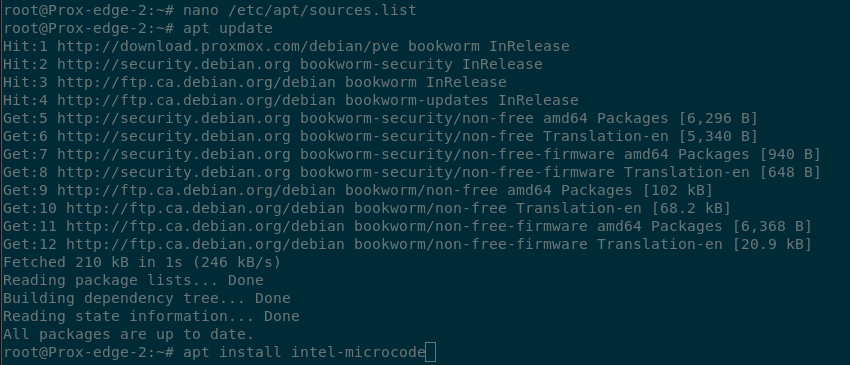
This time it should be able to find the ‘intel-microcode’ package for us to install.
- Install ‘intel-microcode’ package
root@Prox-edge-2:~# apt install intel-microcode
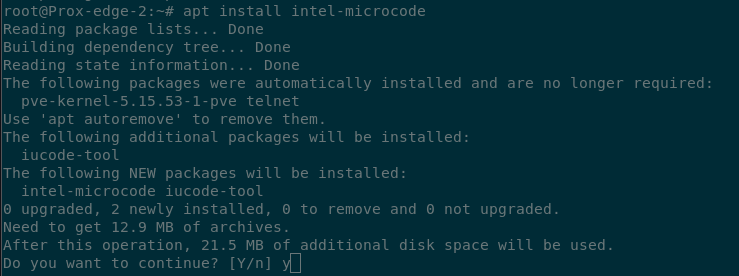
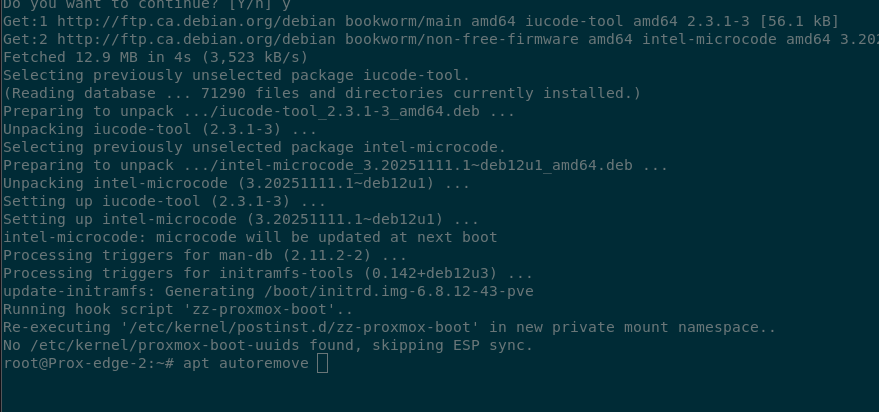
It also told us there were a couple of packages that were installed but no longer needed (‘pve-kernel-5.15.53-1-pve’ and ‘telnet’). I’m going to go ahead and have it remove those packages as well.
- Remove packages no longer needed
root@Prox-edge-2:~# apt autoremove

Readiness check one more time.
- Readiness check
root@Prox-edge-2:~# pve8to9 --full
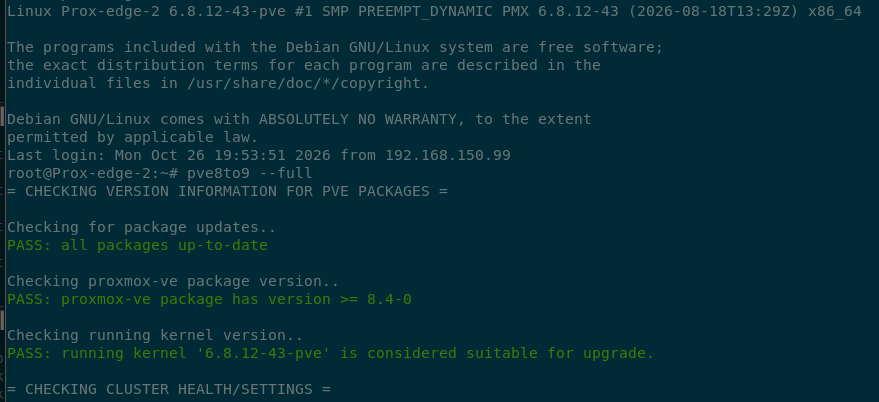
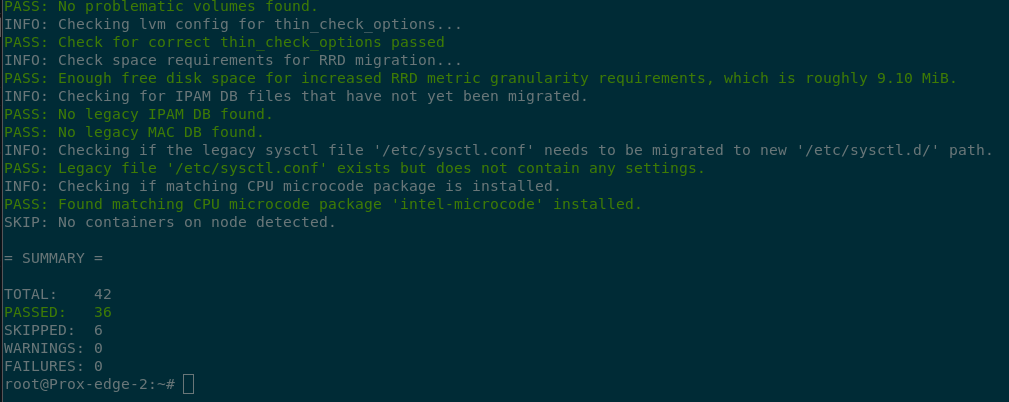
No warnings, we’re good to go.
We’re almost there!
Let’s update those sources again.
I know I know updating the sources so many times is probably overkill, but it takes like 5 seconds to refresh the sources so why not do it and know for sure that we’re working with non-stale items in the package lists?
- View existing sources
root@Prox-edge-2:~# cat /etc/apt/sources.list
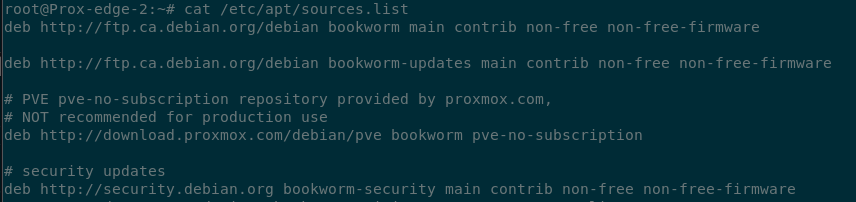
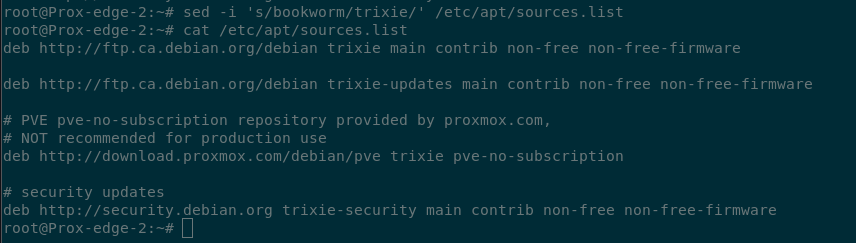
Update sources from ‘bookworm’ to ‘trixie’ for Debian 13
- I ‘sed’ we’re going to update the sources…
root@Prox-edge-2:~# sed -i 's/bookworm/trixie/' /etc/apt/sources.list
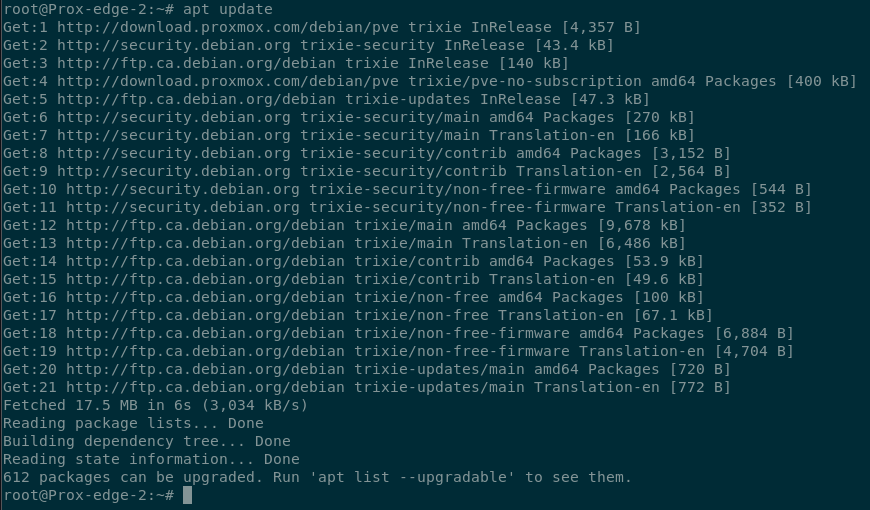
Apt update and we’re got 612 packages that can be upgraded
- Show me the updates
root@Prox-edge-2:~# apt update
Here we go again
You know the drill by now. Dist-upgrade time. And maybe another sandwich…
- Upgrade Upgrade
root@Prox-edge-2:~# apt dist-upgrade
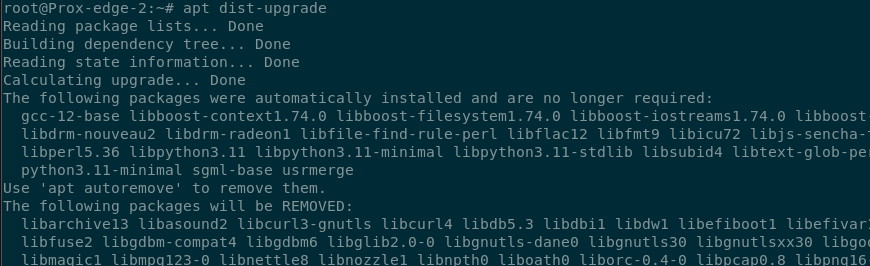
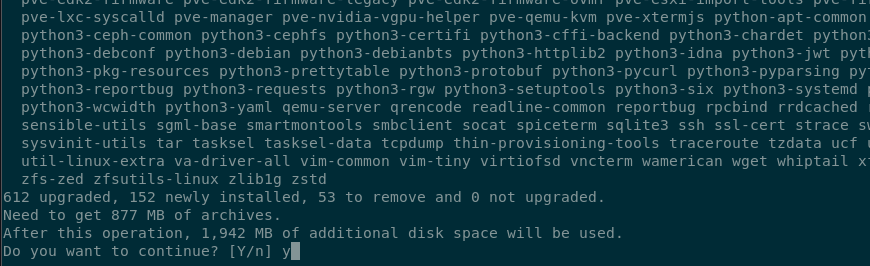
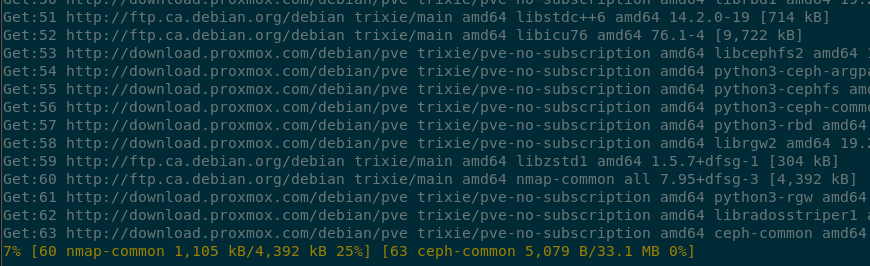
As before you’re going to need to decide if you want to keep your versions of files or install the new ones.
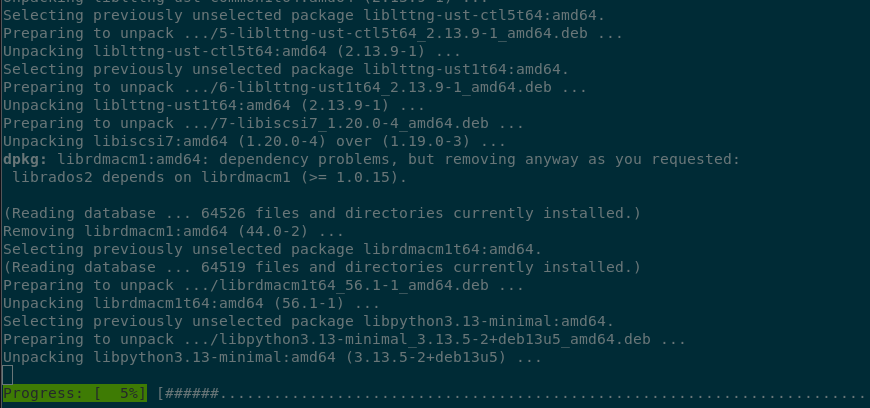
Time to reboot again
- Reboot (how many boots does this thing own anyway?)
root@Prox-edge-2:~# reboot
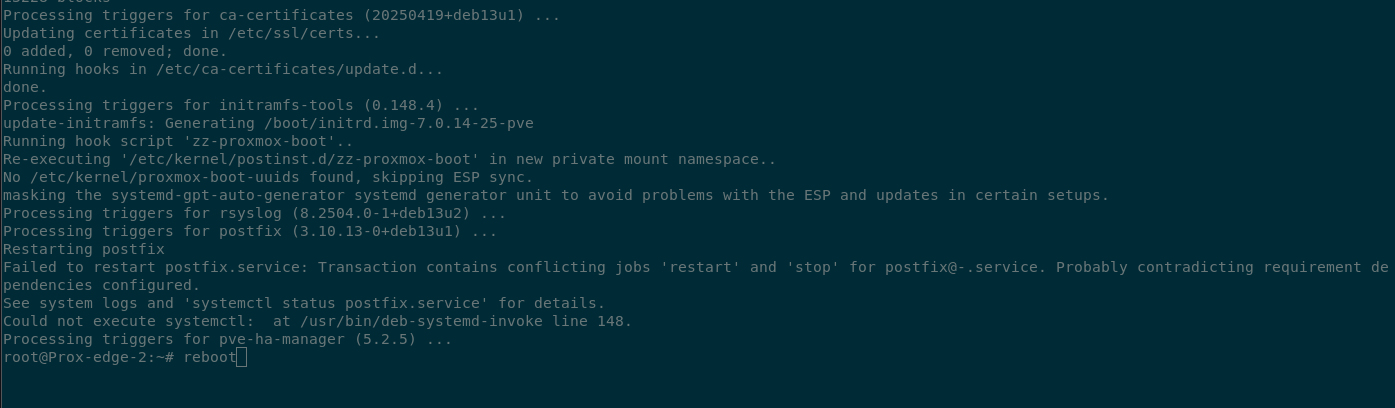
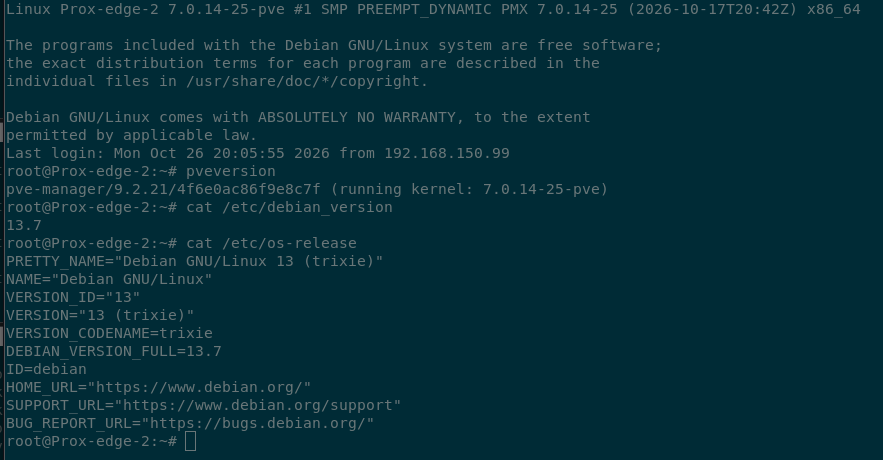
And we’re back. Proxmox version 9.2.21. Debian 13.7. Life is sweet.
- Show Proxmox and Debian Version Info
root@Prox-edge-2:~# pveversion
root@Prox-edge-2:~# cat /etc/debian_version
root@Prox-edge-2:~# cat /etc/os-release
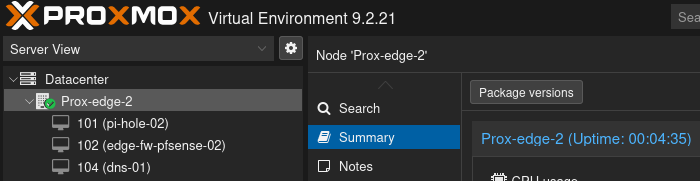
The upgrade did enable the Proxmox Enterprise repo. Which is all well and good if you have an enterprise license. If you’re a home user and don’t well then it just pops up warnings that it can’t access the repo without a license. So we’re just going to go ahead and disable that.

You can disable this from the command line in a similar manner to how we made changes to the other repos, but let’s do this one a little different and disable it form the GUI instead.
- Select your Proxmox node (mine is called Prox-edge-2) and then click on “Repositories” under the “Updates” section in the middle options tree thingy
- Click on the entry (anywhere on it) for the “Enterprise” repository that has a checkmark in front of it
- Click the “Disable” button
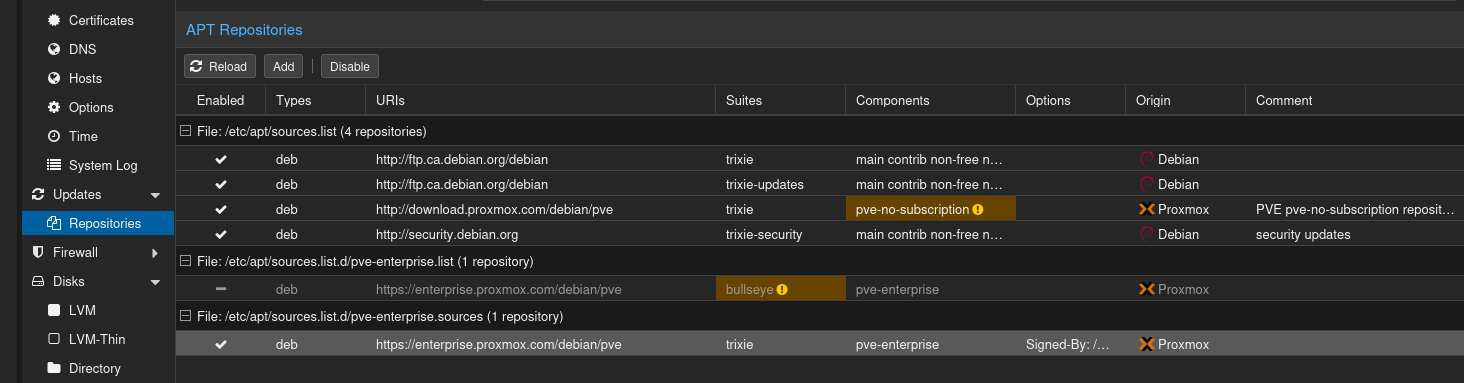
The entry no longer has a check mark in front of it
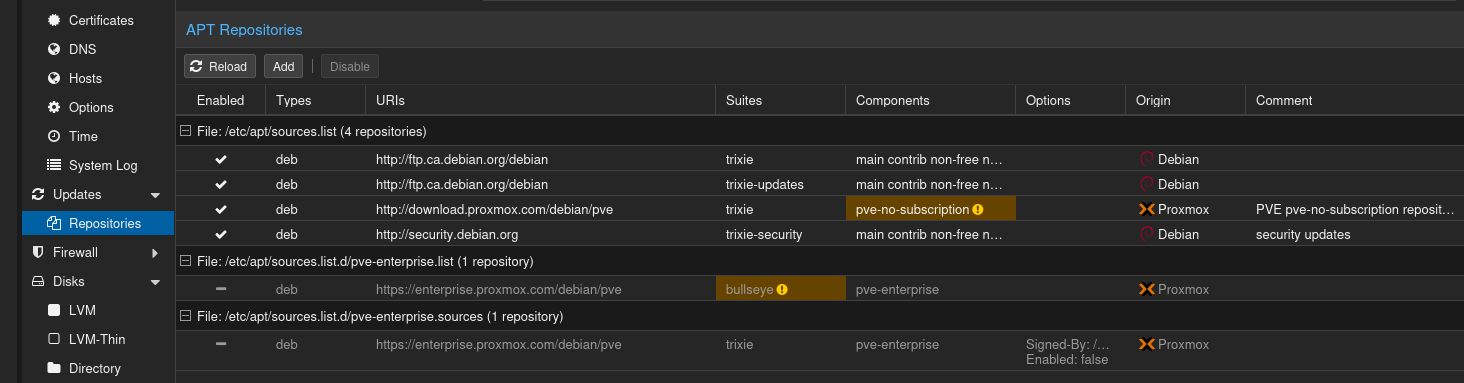
The finish line
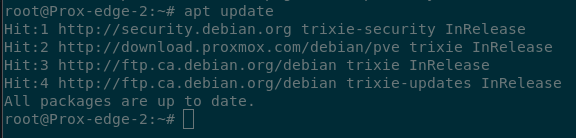
A final apt update to ensure there’s nothing left to do, and congratulations we. Are. Done.
- Final package refresh
root@Prox-edge-2:~# apt update
If you have any questions/comments please leave them below.
Thanks so much for reading ^‿^
Claire
If this tutorial helped you out please consider buying me a pizza slice!